So I decided to have another go at loading BaseCamp using wine in Linux. I'd previously tried this and hadn't got it to work by installing the software from the Garmin website via wine. This time I thought I'd take a different approach. Firstly Garmin Basecamp for windows is a 32 Bit program and I was never sure that I was correctly installing wine with i386 compatibility. I installed wine on my Linux Mint 22.3 system via the Terminal following these instructions exactly.
[media]
]
Here is exactly what I did to install BaseCamp 4.7.5. which follows instructions I found in WineHQ for an warlier version of wine. This is all accomplished via the terminal. These instructions can be cut and pasted into the terminal.
First check Wine is installed.
$ wine --version
wine-11.0
$ mkdir ~/.garmin
$ WINEPREFIX=~/.garmin WINEARCH=win32 wine wineboot
$ WINEPREFIX=~/.garmin WINEARCH=win32 winetricks dotnet461
When asked to reboot, choose "Reboot Later". It takes about 10 minutes, as it install many packages, and you have to press many buttons to allow it to continue.
Then copy a whole C:\Program Files (x86)\Garmin directory from a Windows x64 machine into ~/.garmin/drive_c/Program\ Files/Garmin. You obviously need a functioning windows version of basecamp to do this. I run Windows and Linux on two separate hard drives on the machine I did this on so it was easy for me.
$ cd ~/.garmin/drive_c/Program\ Files/Garmin/BaseCamp
$ WINEPREFIX=~/.garmin WINEARCH=win32 wine BaseCamp.exe
When the last instruction loads Garmin BaseCamp should boot.
I've also installed the City Navigator Europe NTU 2026.30 on Linux
this is what you need to copy from windows into the /.garmin/drive_c file created in Linux
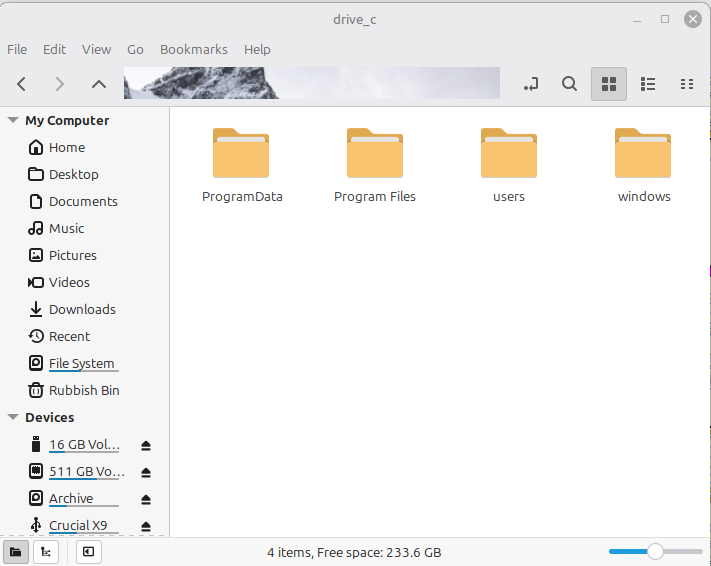
- ksnip_20260114-224824.png (74.34 KiB) Viewed 1337 times
When you open up basecamp using these commands
$ cd ~/.garmin/drive_c/Program\ Files/Garmin/BaseCamp
$ WINEPREFIX=~/.garmin WINEARCH=win32 wine BaseCamp.exe
you won't be able to see your garmin maps as they will be locked. I fixed this by going to maps > manage map products> unlock regions tab and importing the gmapprom.gma file from the Zumo .system folder. (careful in there don't delete anything or you could brick your unit.)
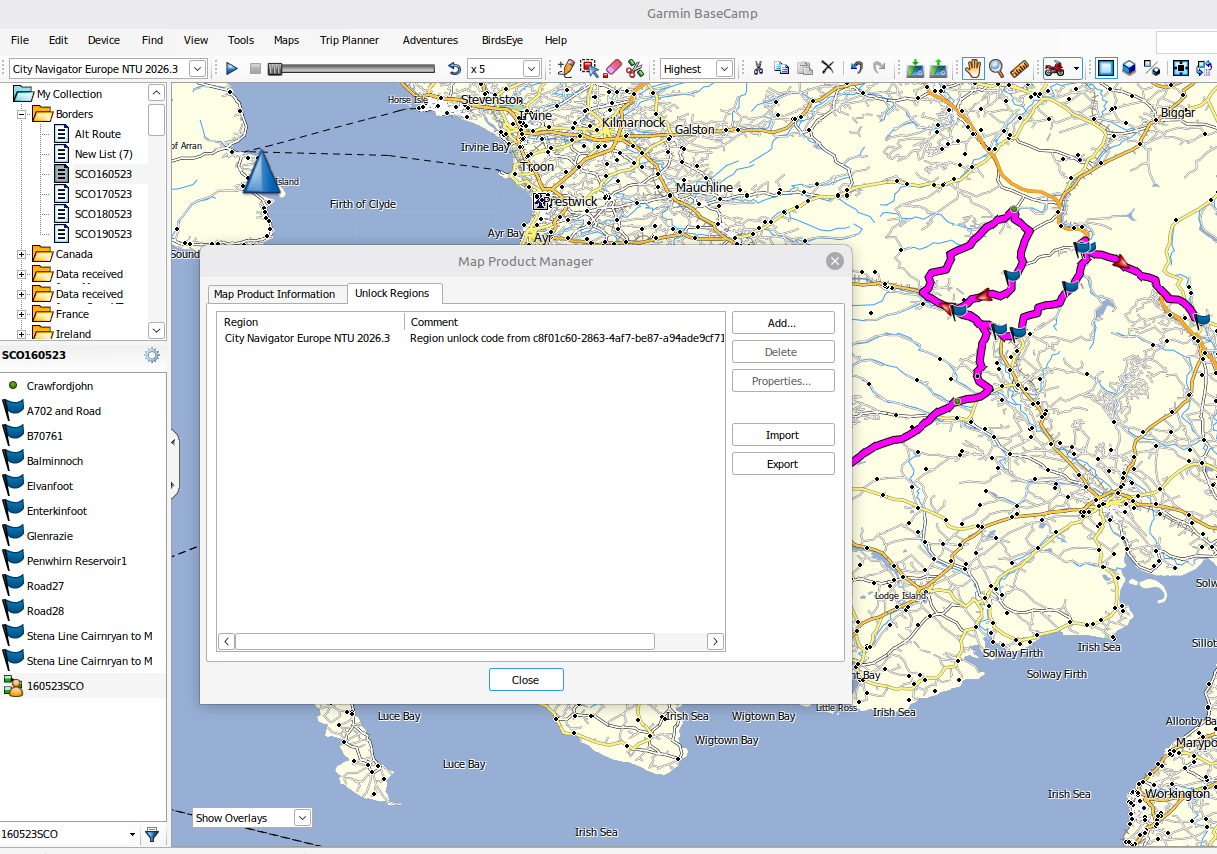
- ksnip_20260114-230012.png (623.55 KiB) Viewed 1337 times
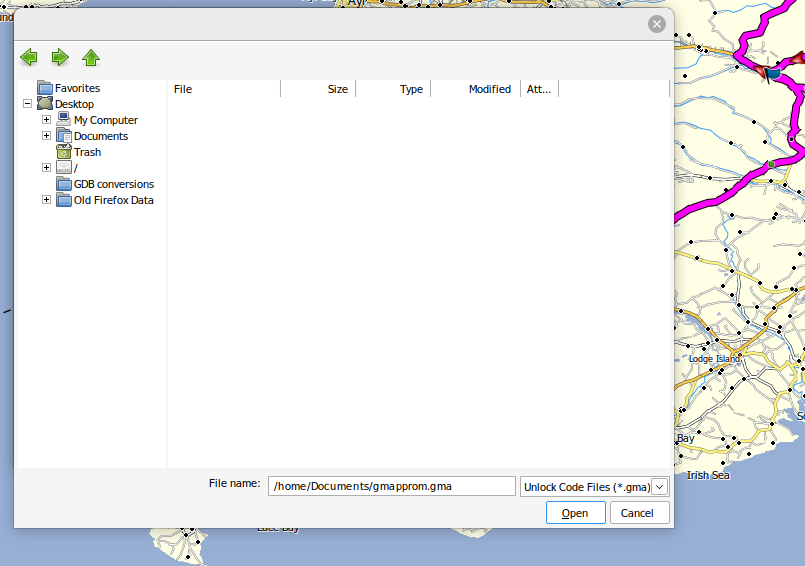
- ksnip_20260114-230205.png (132.39 KiB) Viewed 1337 times
So that you don't have to launch Basecamp using Terminal every time you want to use it. Make a script to run the commands to open it
Open a text file on the desktop and insert this text
Open the Terminal and Run the following command:
cd ~/.garmin/drive_c/Program\ Files/Garmin/BaseCamp
WINEPREFIX=~/.garmin WINEARCH=win32 wine BaseCamp.exe
close the text file go to properties and tick allow executing file as a program
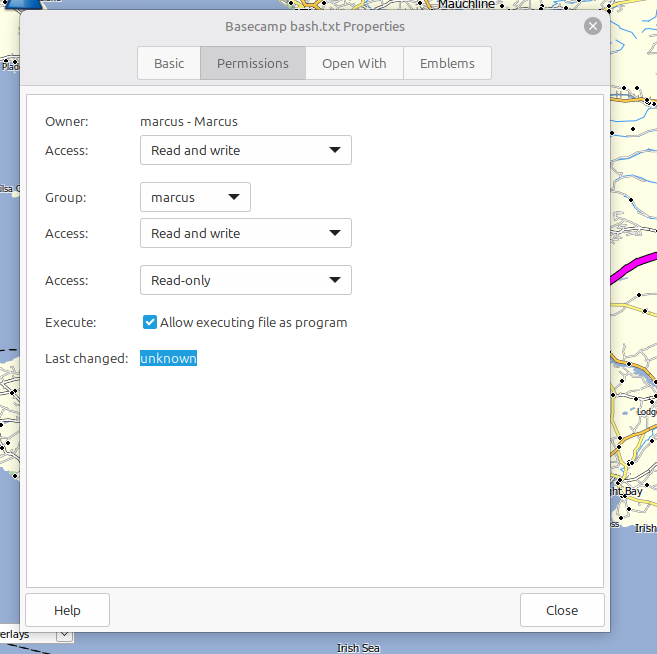
- ksnip_20260114-230917.png (91.29 KiB) Viewed 1337 times
When you click on that BaseCamp will launch.
I've had limited time to play with it and there are a few limitation.
1.BaseCamp can't see the Zumo unit attached to the PC. Linux can but BaseCamp can't.
2. Cant get Express to run so updating would be difficult.
3. In actual use the program seems to work ok with the excption of the + and - signs to expand and contract the folders to see your lists you need to hover over the Icon and right click fo expand/collapse the folder.
I did a backup on the Windows system and imported it into the Linux system and that worked fine.
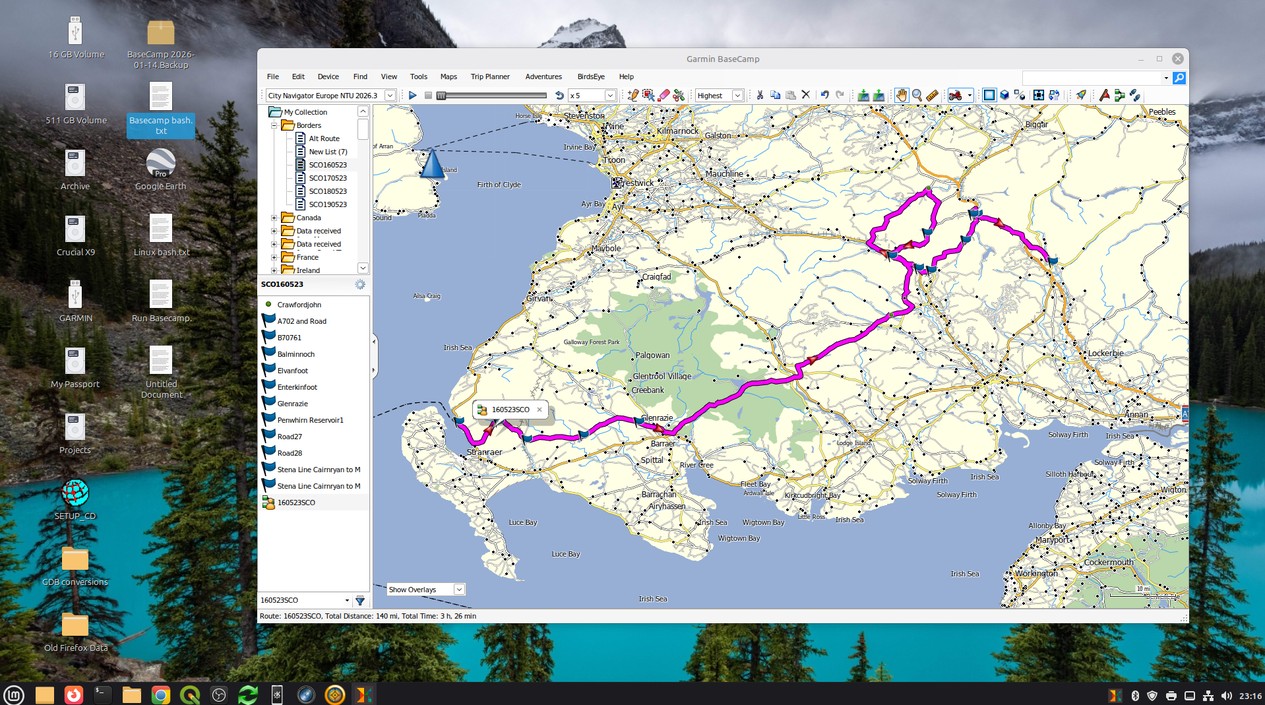
- ksnip_20260114-231707.jpg (311.47 KiB) Viewed 1337 times