Ok - so we are talking about the same thing.
On the XT2 - the "saved locations" that you are talking about have all been called:
'Saved' - Appears in
Where To? -> Saved - on Zumos set up with Text Language set as USA English.
'Favourites' - Appears in
Where To? -> Saved - on Zumos set up with Text Language set as UK English.
'Waypoints' - The term used in all gpx files <WPT>, in Basecamp and in the Zumo XT2 no matter what the language is set to.
They are all the same thing and are used in exactly the same way. You can store them on the Zumo in Favourites/Saved/Waypoints and they can be made to appear on the map.
'Categories' was a feature that existed in BAsecamp and was adopted by all of the Zumos that I have owned - until the XT2 - which doesn't use them.
Once a certain number of waypoints/saved/favourites had been assigned to a category, then the category name showed up in:
Where To ? -> Favourites (UK) or in Where To ? -> Saved (USA).
The category name could then be selected and it would show all of the waypoints / 'saved' that belonged to the selected category.
Any waypoint could belong to any number of categories. Like belonging to a club or a group.
I think it is a powerful and little used feature and so very easy to implement in Basecamp. You can select any number of waypoints from your list in Basecamp, right click and select 'Open' and create a new category name (or an existing one) and all of the selected waypoints would be added to that category.
The XT2 does not support Categories. It just ignores the category setting altogether. In the info about a waypoint, there is no indication that it belongs to a category, and the category names are not listed when you select 'Where To ? -> 'Saved' (Or Where To ? -> Waypoints as it would have to be in the XT2. It doesn't exist.
Instead the XT2 has collections. THey work in a similar way - you can add any route, track or waypoint to a collection that you creates.
In fact when importing routes data into the XT2 from GPX files, it gives you the option of which gpx file to use, and it then lists which items are in the file and lets you select which items you want to import. So you can import all of the tracks routes and waypoints that you want to se in a collection called Monday. Then import all of the ones that you want in a collection called Tuesday. etc.
Once again any item can belong to any number of collections.
But the XT2 has a really useful feature - you can turn on or off all of the collections except one - so that on Tuesday your map is not littered with waypoints and tracks from Monday's ride.
The Tread app and the XT2 have tools to allow you to organise your collections.
Select the Explore Icon from the main menu
OR : Select Where To ? -> Waypoints
OR: select Apps -> Routes or Apps -> Tracks
They all take you to the Explore collections of screens. They have a green banner at the top.
It isn't obvious, but if you tap that green banner you can choose to display any of the other Explore displays:
All, Waypoints, Tracks, Unsaved Tracks, Routes, Courses, Collections
THere are also a number of symbols at the top - one of which is a vertical ellipsis (3 dots) which opens up a new set of symbols. If you have the camera / screenshot feature enabled, you cannot see or access this icon - so I have to turn the XT2 into portrait view to get a decent image of it.
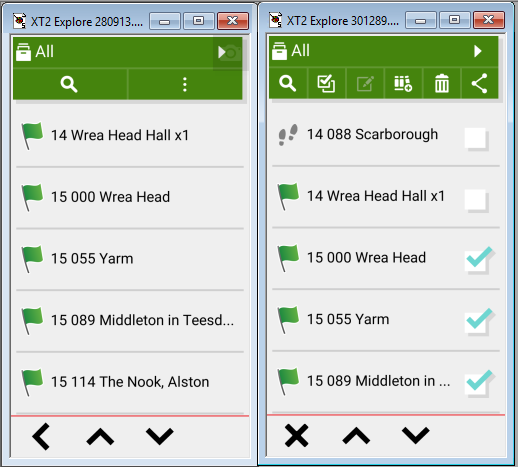
- Collections.png (52.11 KiB) Viewed 388 times
So the left hand shows the search button and the ellipsis which opens up more options - one of which is Select and Edit.
The right hand shows the screen that is then displayed with some more icons - and the same list with a check boxes alongside.
Icons from left to right:
Search.
Tick box. You can select all or deselect all check boxes - whichever makes life easier for you. Whatever you do next will only affect the items with a tick in the box.
The grey icon of a pen and notepad opens up a screen full of icons that you can assign to ticked item(s). Why it is grey, I do not know. That usually means that nothing is selected.
The shelf of 3 books with a + sign is to indicate collections. Tap this and the selected items will be added to the collections of your choice - which is presented as another tick list. The colelction will be ticked if the items are already members of the collection, or uticked if not. Set the tick for each collection that you want - or untick it. That screen (not displayed) also allows you to create a new collection for you to use.
The bin is obvious - delete the ticked items.
The 3 point/2lines symbol has become synonimous with 'share'. In this case the choices are disappointing - you can put the slected items onto the memory card or share them via the Tread App.
It takes a little fiddling around with it to work out a way that works best for you. I can use it quite well, but so far I keep thinking - I'm sure that I could have made that much easier. It is certainly made a lot easier if you create a separate gpx file for each day's riding. Import just that day and create a collection for that day. But so far I have forgotten to do that !
I should add - The XT1 also has collections. But colelctions on the XT1 were only available if you had Garmin Drive set up to synch with the Explore database. And the Explore database created problems.
The XT2 also uses the Explore database with a new application called Tread. You can choose to synch or not synch - although Garmin make it easy to select the option to synch inadvertently. There are three options:
- Do not install Tread on your phone. No synch is possible, no traffic / weather / upahead data is available on the XT2.
- Install tread - do not allow it to synch or save data. No synch is possible, but traffic, weather, upahead palces are all available ont he XT2
- Install tread and allow it to synch witht he explore datbase. As above and routes can be cretaed ont he app and synched to the XT2. But there are some serious routing issues with this arrnagement. In tests, route points are often renamed and moved onto different roads.
Whatever - Collections are always available and are a real boon in organising your rides and data.