Liksaa wrote: Tue Jan 06, 2026 9:50 am
Thanks for putting this together! I see you have Section 4.04 (RUT Behaviour) listed above.
I've had issues in the past where my device recalculates a route the moment I import it, ruining my shaping points. Does your guide in that section specifically address how to lock the route down so the XT2 doesn't change it upon import, or is that more about settings on the device itself?
Welcome Liksaa
Not in that particular section. RUT behaviour usually happens when a route has been recalculated - often by pressing Skip.
eg suppose there is an incident ahead that you want to avoid, but in doing so, you are by-passing a shaping point. To stop it taking you there, you have to press skip.
That recalculates the route and as a result changes the nature of the entire route. Now it focuses on getting you back onto its route rather than taking you to the next route point. By doing that, if you ignore the next request to go back to whereyou left the route, it builds a new route going back from where you are now to the point where it asked you to go back. If you ignore that, it does the same. Each time you continue ahead, it drops another 'breadcrumb' to take you back to. And it cannot escape from this until you get very close to the original route some way ahead.
That problem can be solved by using Trip Manager, to transfer GPX files to the XT2, or by making a copy of a route using the Zumo screen, and running the copy, rather than the original. Yes Really !
What you are describing is as a result of using Tread. Using Tread on a Phone or an ipad - create a route made entirey of Via Points, they stay very nearly exactly where you place them. Change some of the vias to shaping points - and those locations will often move to a different road.
Also If you get a perfect route in the XT2 imported as a GPX file, then that remains as it was. The Zumo may well recalculate it for a number of reasons, but it will keep the Vias and Shaping points more or less where you plotted them. But then it will try to Synchronise with the Tread database. The XT2 will talk to your Tread App on your phone by BT. The phone will talk to the Garmin Explore database by your phone's wifi data. The Data will be synched back to your phone and then to the XT2 - and it will have changed.
I believe that Tread is not doing what it was intended to do, and in order to prevent this, you really have to get rid of the part that synchronises the XT2 with the Explore database.
And to do that - if it is already set up, you have to delete Tread from your phone and you have to carry out a complete system reset of your XT2.
You can if you wish then go through the process of setting up Tread on your phone, and doing everything that you did before to set it up,
EXCEPT when you get to the point where it asks if you want to save your data or synch your data, Refuse. There will be many options presented to enable synch. But there is no option to disable it. There is even an option in the Collections menu to catch the careless finger press.
By having Tread set up but not synching, that enables you to have traffic info, road closure info, weather, what is up ahead, petrol locations and prices. I find some of that quite useful. o thatis how I set mine up.
Trip Manager is a program developed by
@FrankB on this site. It works with PC / Winodws 64bit computers. and it is a method of getting a GPX file from the computer transferred into a route file (called a trip file) on the XT2. The XT2 still neeeds to calculate the route between route points - so you need to think about that when placing your shaping points. But the points will not move and they will not change their name. I still use Basecamp to create my routes. It still works very well, and if at home, I'll use Trip Manaager to transfer them to the XT2 / XT1.
I'll come back and edit in some information about where you can find more detail about this little essay !
Ok - actually most of what you are asking about also applies to the XT1.
And there is a
menu page here which covers much of it. Always near the top of the Zumo XT menu of the Board Index.
To answer your particular question about locking a route down - well, you can use a lot of shaping points to pin it down, - but then the route loses its flexibility. I like my routes to allow me to go a different way, and they will recalculate when I do that. Having a shaping point every couple of miles, I'd be forever skipping them (which can result in issues, as I have described), or the satnav will be nagging me to go a different way.
Instead, I'll have maybe 5 via points for a long route. Start, stop and maybe three breaks. Then I'll place shaping points to steer the route onto the roads that I want. More if the roads are running close to a nearby faster road.
But generally, I will take a copy of a track created from my route and transfer that to the Zumo. All Zumos will display a route and a track at the same time. One on top of the other. You just have to make the track visible. The route may alter, but the track stays exactly where you plotted it. If the two deviate, you have a choice: go with the satnav, or go with the original.
If you go with the original, the satnav will probably want to navigate you a different way, but ignore that and it will soon change its mind and navigate the way that you are going. And if you have run a copy, or you have transferred the route using Trip Manager, then it will never get into a RUT situation.
There is an example of a route running on the XT1 with a green track displayed underneath the route.
Another example further down the page, shows a red track and the route deviating from the track.
Page 50 of the XT1 reference pages
I haven't yet got round to showing this for the XT2 - with the XT2, you can set the visibility of a track by putting it into a collection and making the collection visible. Here is an image of a route on top of a black track. Black stands out very clearly, especially when you deviate from the route.
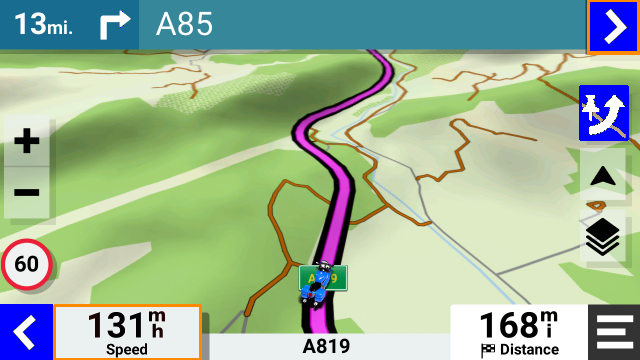
Collections are implemented very well on the XT2, I tend to have one collection for each day of a tour, and set all of them to be invisible except the current day. There is a complete section 3 on that topic in the links that you quoted.


